Nextcloud
To access your file shares via Nextcloud, please proceed as follows:
Preparation (required for mounting drives)
- Navigate to https://nextcloud.akbild.ac.at and log in
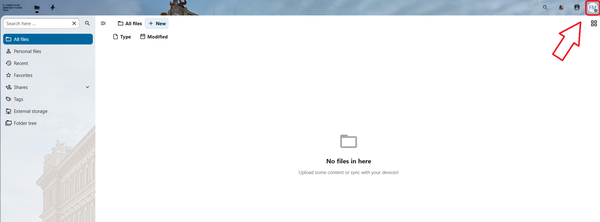
- Click your initials at the top right and then click “Settings”
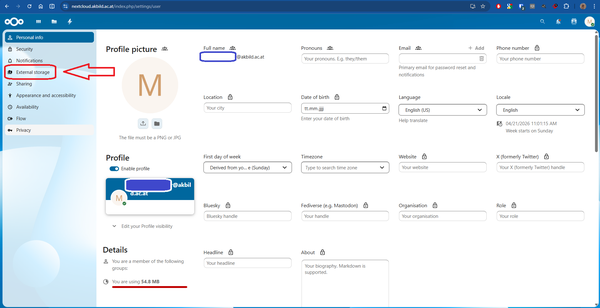
- Click “External storage”
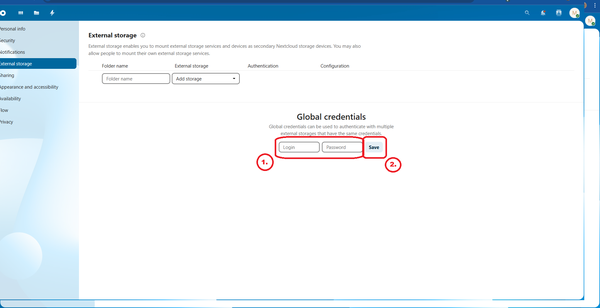
- Enter your username (your student ID prefixed with “r”, e.g., “r0123456”) and your password under Global credentials, then click Save
Mount home drive
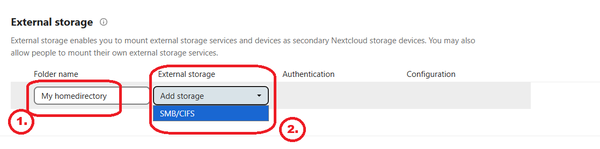
- Enter a folder name (e.g., “home”) and click “Add storage” then select “SMB/CIFS”
- In the fields under the Configuration column, enter “file07.akademie.bildendekunst.ac.at” for Host, “student-homes” in the Share field.
In the Remote subfolder field, enter your username (your student ID prefixed with “r”, e.g., “r0123456”)
In the dropdown menu, select “Global credentials”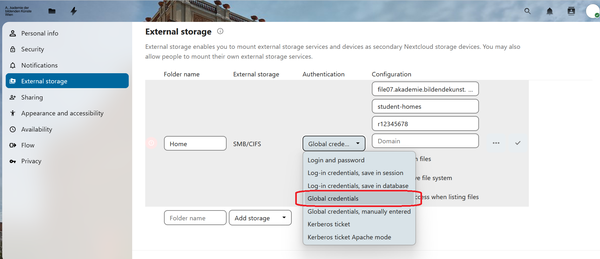
- If a green checkmark appears to the left of the folder name, the configuration was successful. Otherwise, either the global credentials were incorrect or you lack permissions for the folder
Click the checkmark on the right to save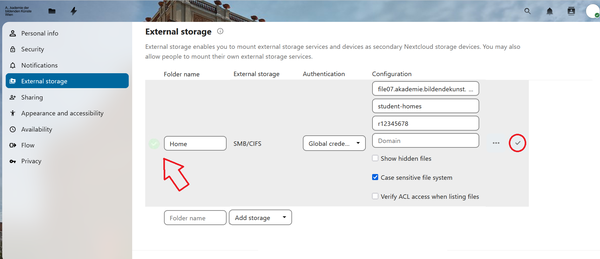
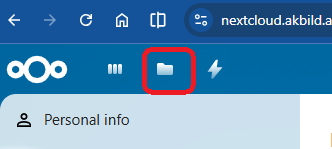
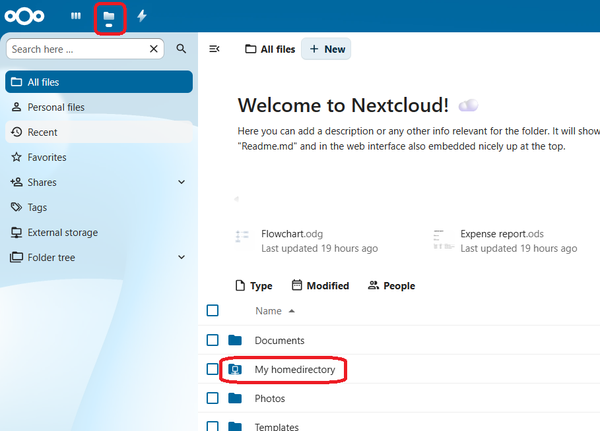
- To access your folders, click the folder icon at the top left
Mount institute shares
- Enter a folder name (e.g., “IKW”), click “Add storage” and then select “SMB/CIFS”
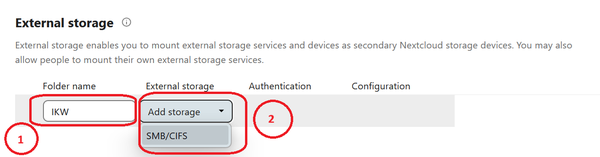
- In the fields under the Configuration column, enter “docstore.akademie.bildendekunst.ac.at”.
For Host, enter the exact name of the folder you want to mount in the Share field (e.g., “ibk”, “ika”, “ikl”, “ikr”, or “intk”).
Leave the Remote subfolder field empty.
In the dropdown menu, select “Global credentials”.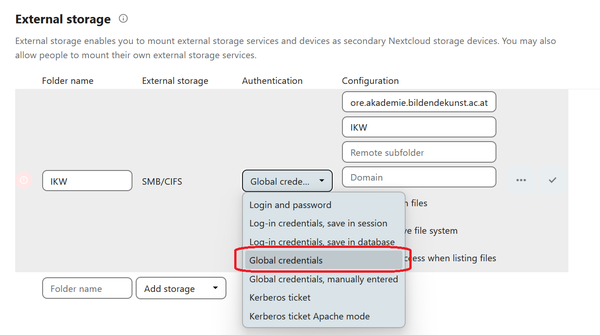
- If a green checkmark appears to the left of the folder name, the configuration was successful. Otherwise, either the global credentials were incorrect or you lack permissions for the folder.
Click the checkmark on the far right to save - To access your folders, click the folder icon at the top left
