Mail Migration
Notes
General Information
- As previously announced, the academy’s email services will be migrated to Microsoft Cloud (Outlook online). To prepare your account for the migration, please bear the following requirements in mind: MFA must be activated in order for your mail account to be migrated.
- It is recommended to perform the Office upgrade.
- We recommend registering Mac devices with ZID Support.
Phases and Deadlines
- Starting Monday, August 4, users with activated MFA will be migrated in groups.
You have not activated MFA yet? - Approximately from mid-August, your mailbox will be migrated as soon as you activate MFA.
- The deadline is August 25. All mailboxes will be migrated. Users without MFA will need to activate an MFA token when opening Outlook (or another mail client).
Email Program Support Policy
In general, the Academy allows for the use of various mail clients (Outlook, Gmail, Thunderbird, Apple Mail, …) But not all of the applications are tested and supported by ZID.
- Outlook is the email client supported by ZID.
- Apple Mail (from macOS 10.14, iOS 14, iPadOS 14, visionOS 1.1 onward) is also supported.
Mail Migration for Outlook Users (Windows)
The migration will happen automatically. Depending on your individual mail configuration, you may receive one or more of the following messages during the mail migration:
- Microsoft asks you to allow login to all Microsoft-Apps automatically:
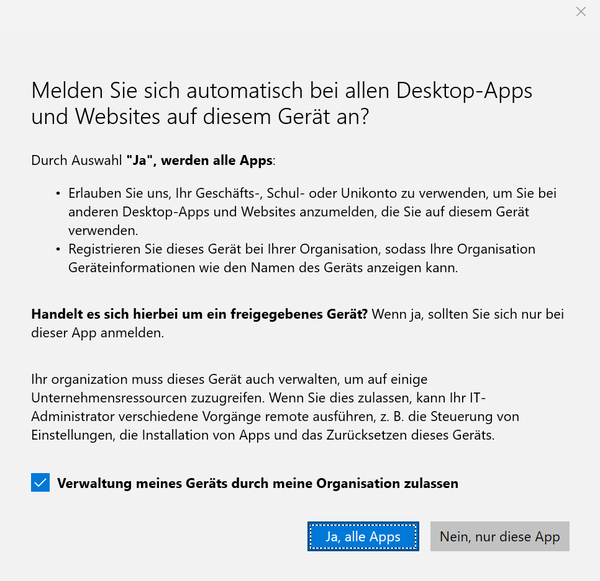
The login to all apps is recommended for all employees on their work computers. (This will simplify your login process because you will need to login with MFA only once.) Select "Verwaltung meines Geräts durch meine Organisation zulassen" to ensure that your computer will be maintained by ZID. Then click "Ja, alle Apps". - The alert that the Exchange-Administartor changed your Configuration notifies you about the mail migration. Click "OK":
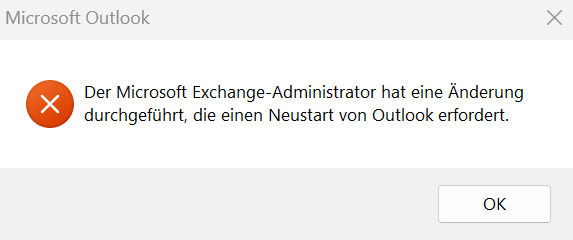
Please close and reopen Outlook now. - If you receive the following message, please check the validity of the „akbild.ac.at“ domain. Then click "Zulassen":
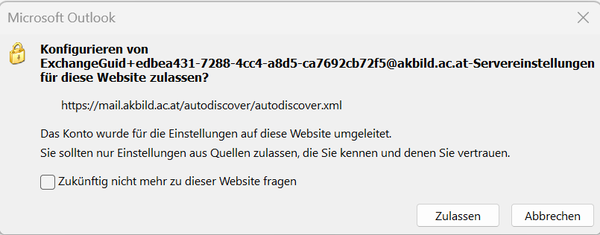
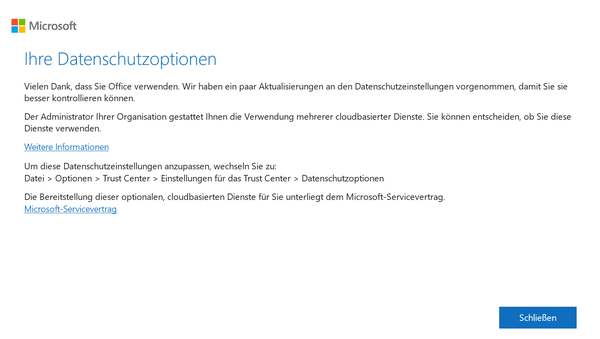
- This message will lead you to the Microsoft Data Protection Options. Click "Schließen" to get to your mailbox:
Mail Migration for Apple Mail Users (macOS)
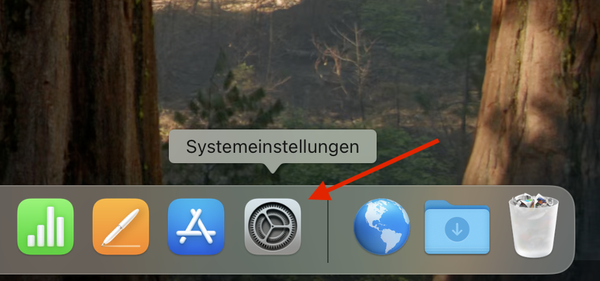
- As an Apple Mail user, you must first delete the existing account. To do this, open "System Settings."
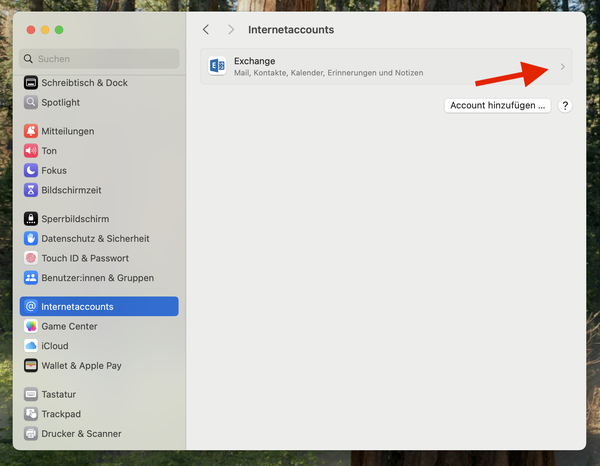
- Click on "Internet Accounts" and then on the arrow next to "Exchange."
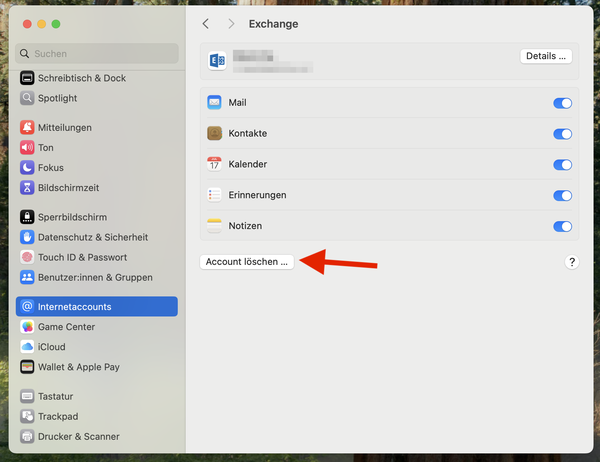
- Click on "Delete Account."
- Confirm the deletion of your account by clicking "OK."
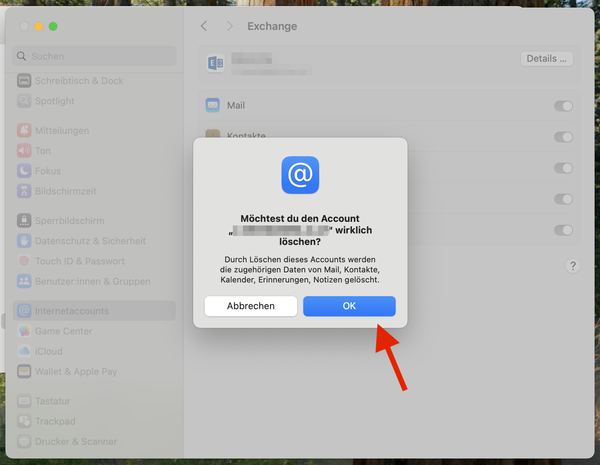
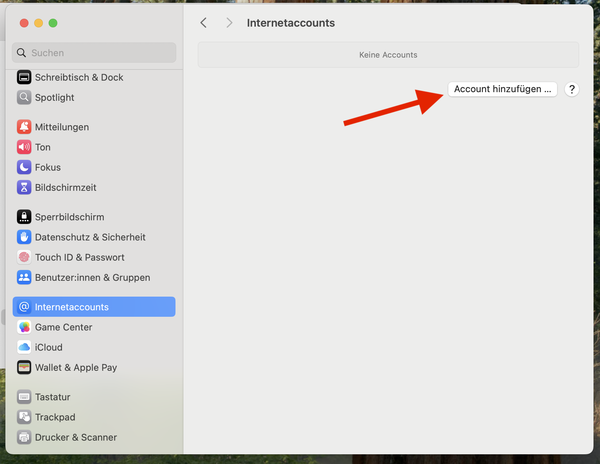
- Now create your account again by clicking on "Add Account."
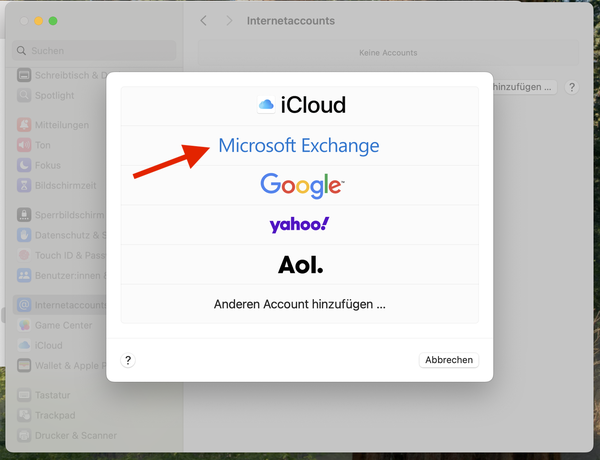
- Select "Microsoft Exchange."
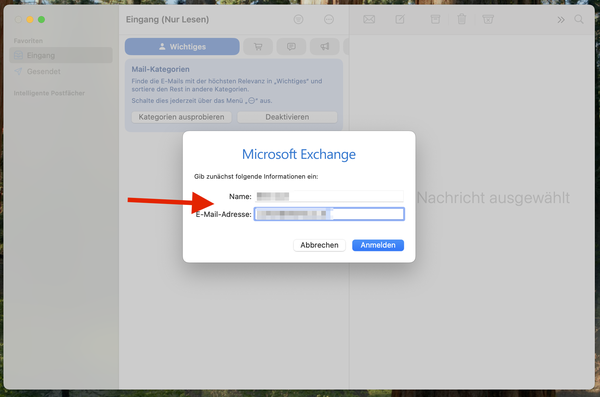
- Enter your email address and a name under which this account will be displayed later.
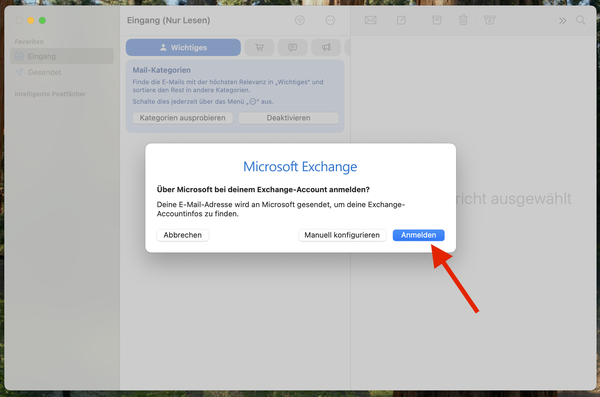
- Confirm the sign-in with Microsoft by clicking "Sign In."
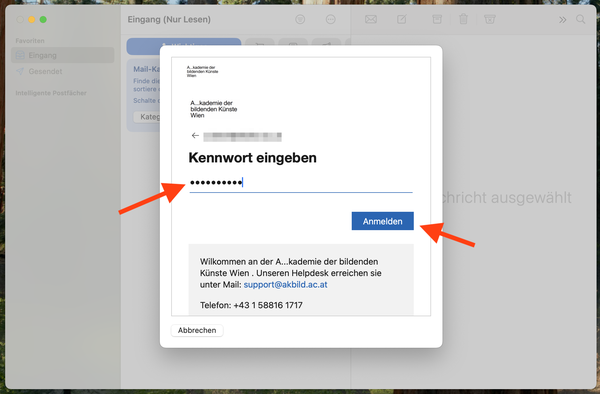
- In this window, you will be prompted to enter your password—do so now.
- Enter your token.
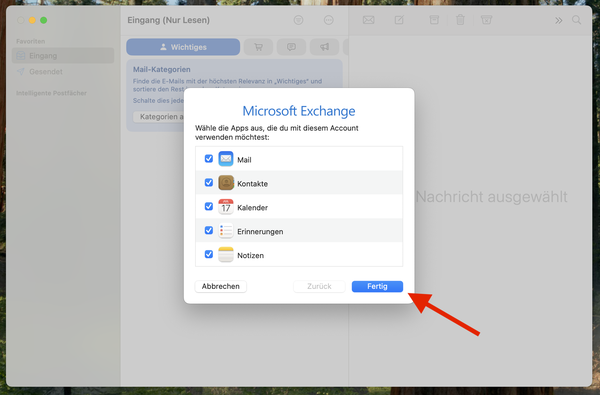
- You can now select which components you want to use (e.g., all of them).
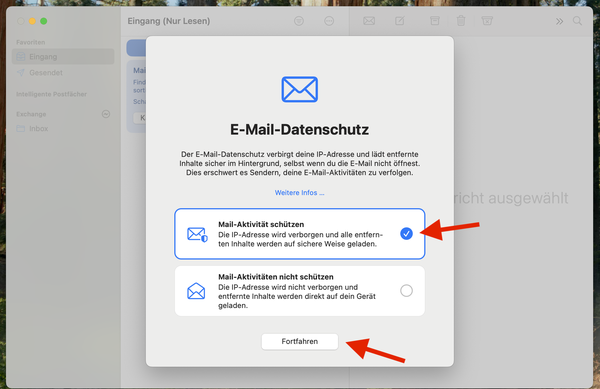
- In this window, you can choose whether to protect your mail activity. Click "Continue" after making your selection.
Mail Migration for Outlook Users (Android)
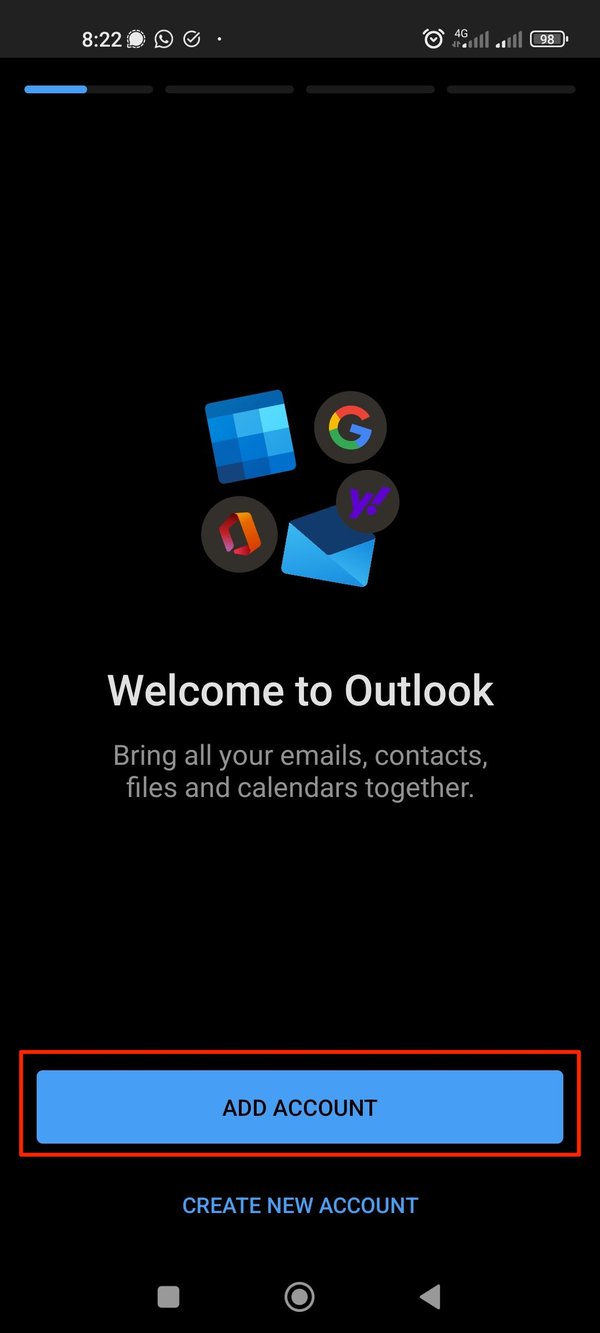
- In your Outlook App, tap on "add account"
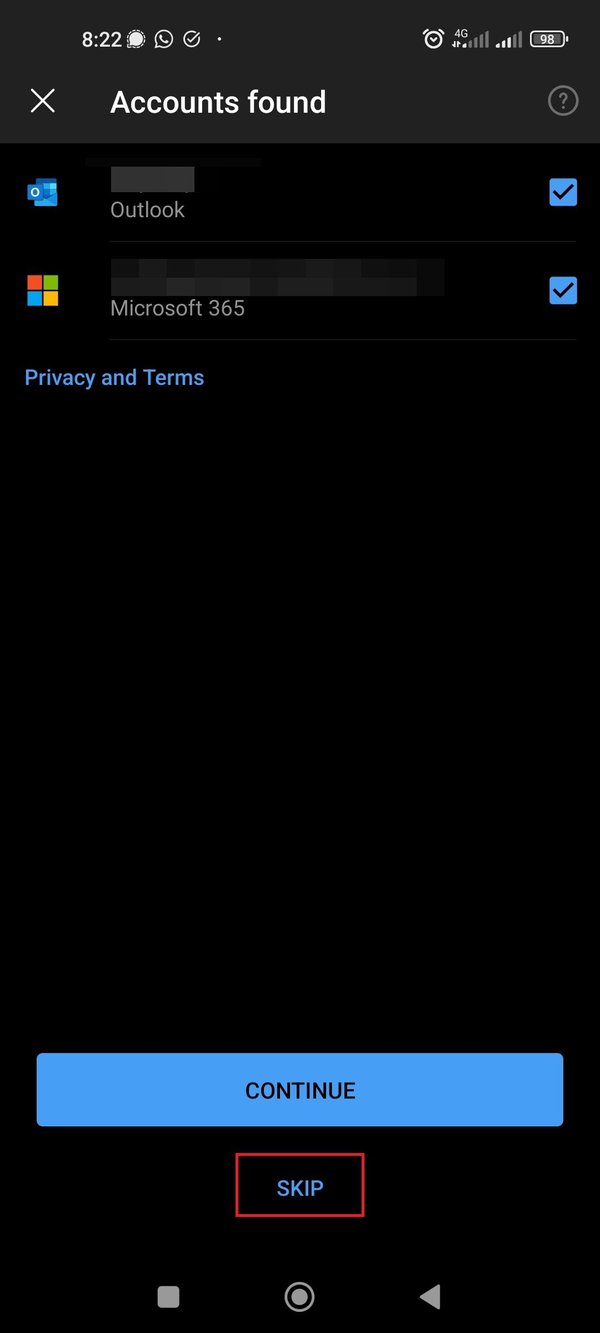
- Tap on "skip"
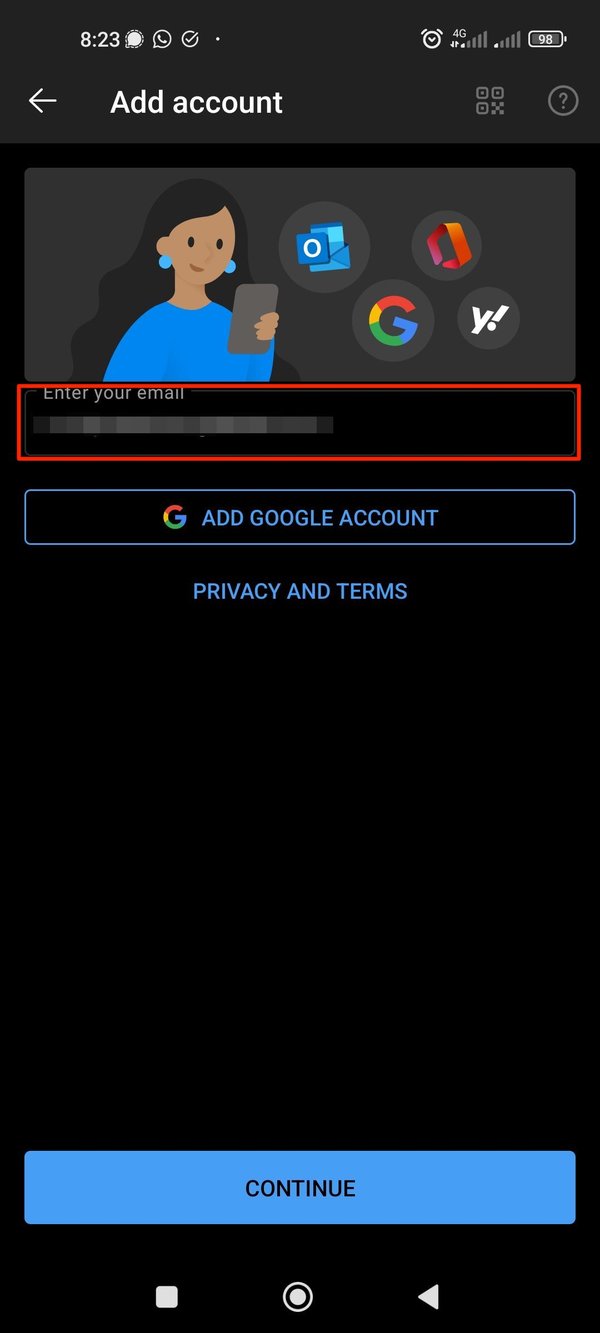
- enter your academy e-mail adress
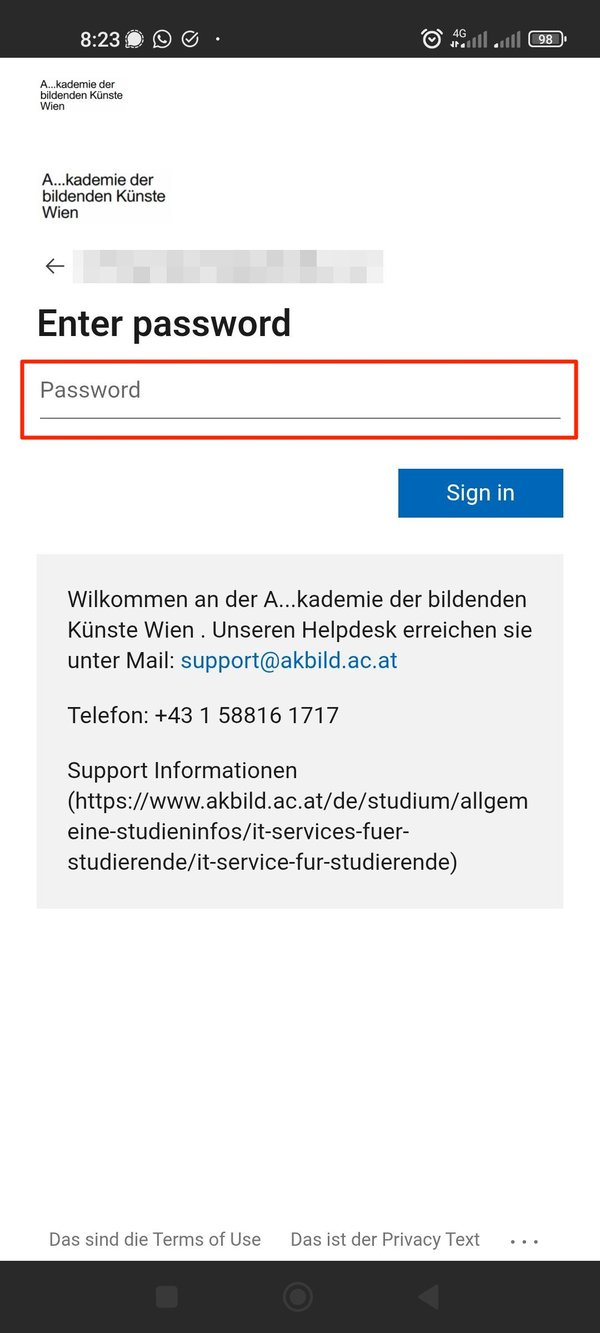
- Enter your academy password and tap on "Sign in"
- If you are asked whether you want to add another account, tap on "maybe later"
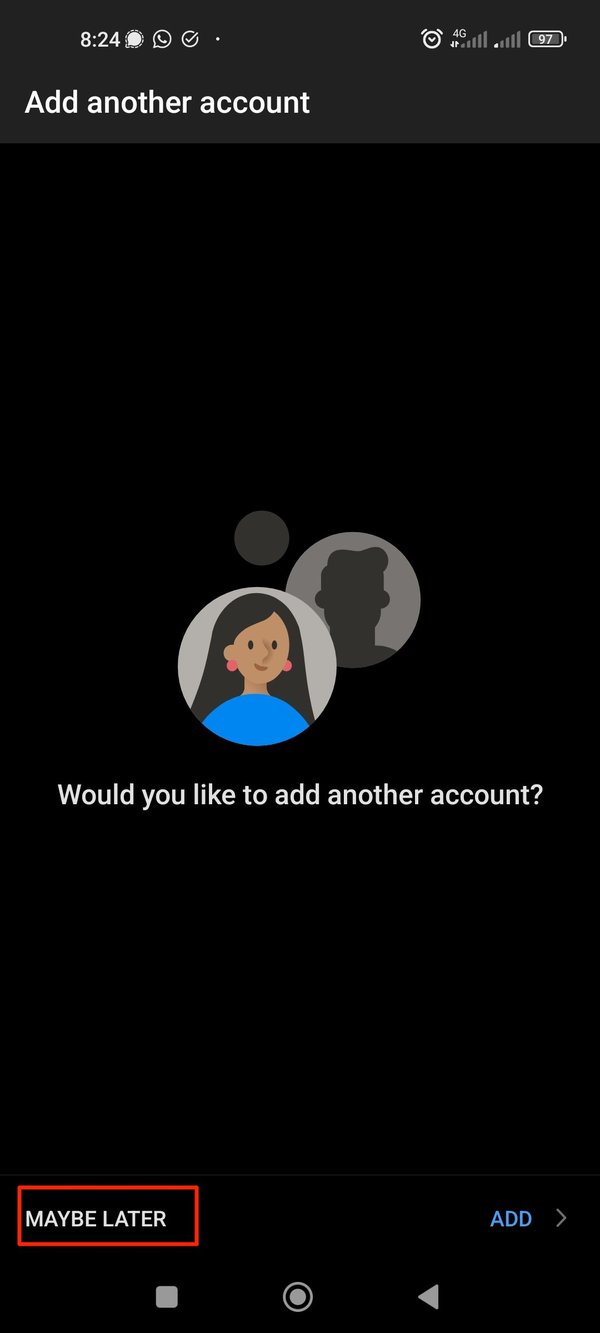
- You have now successfully set up your mailbox
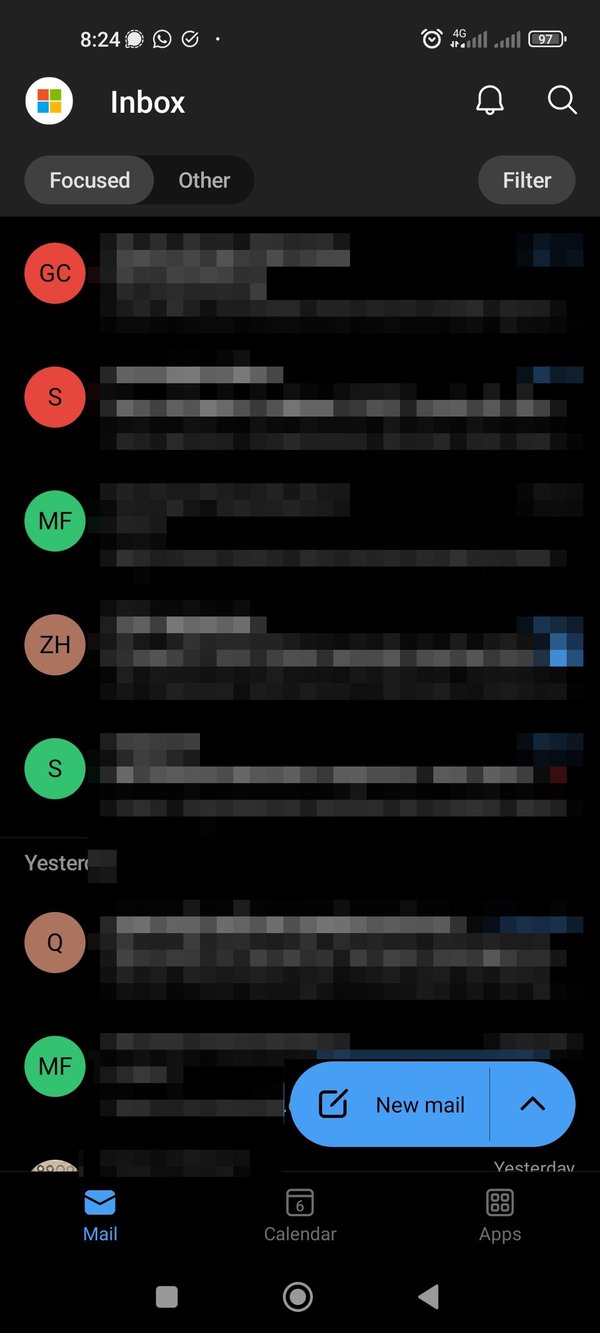
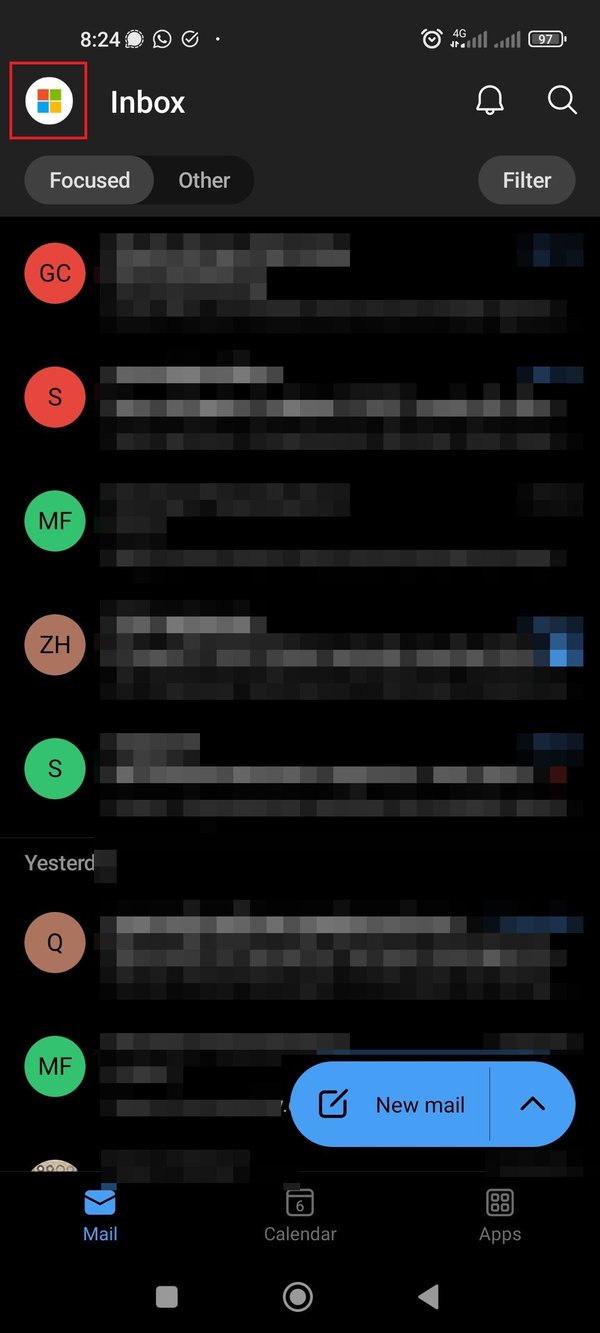
- If you want to add a shared mailbox, tap on the Windows icon in the upper left corner
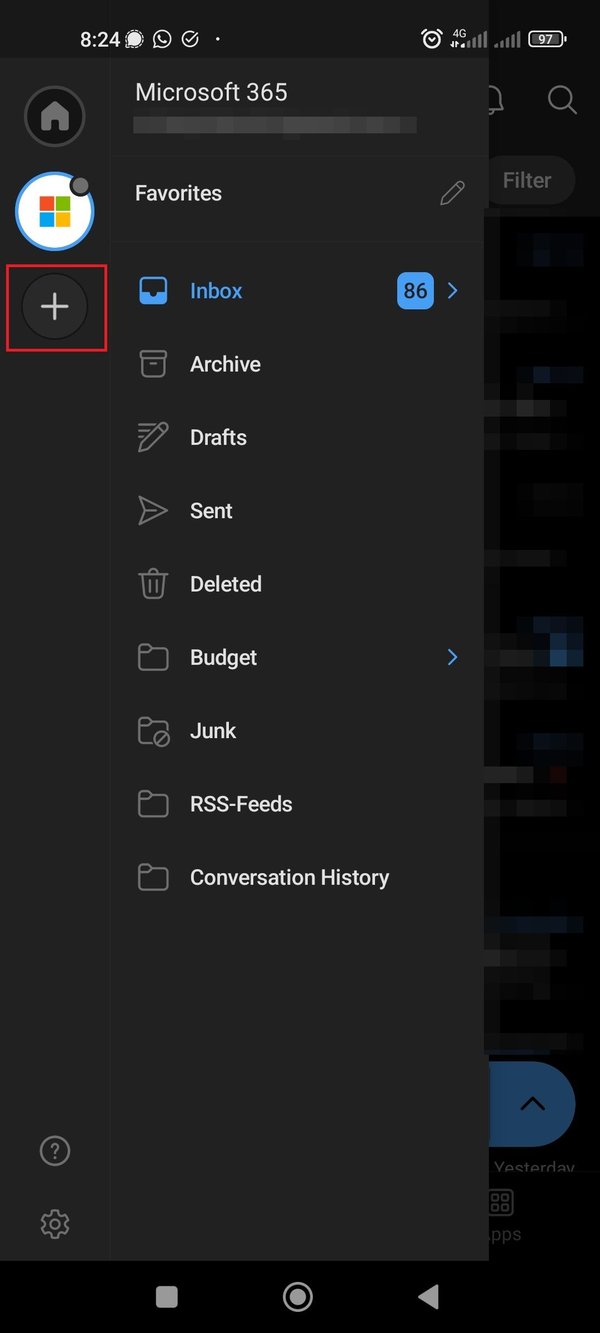
- Tap on the "plus" icon
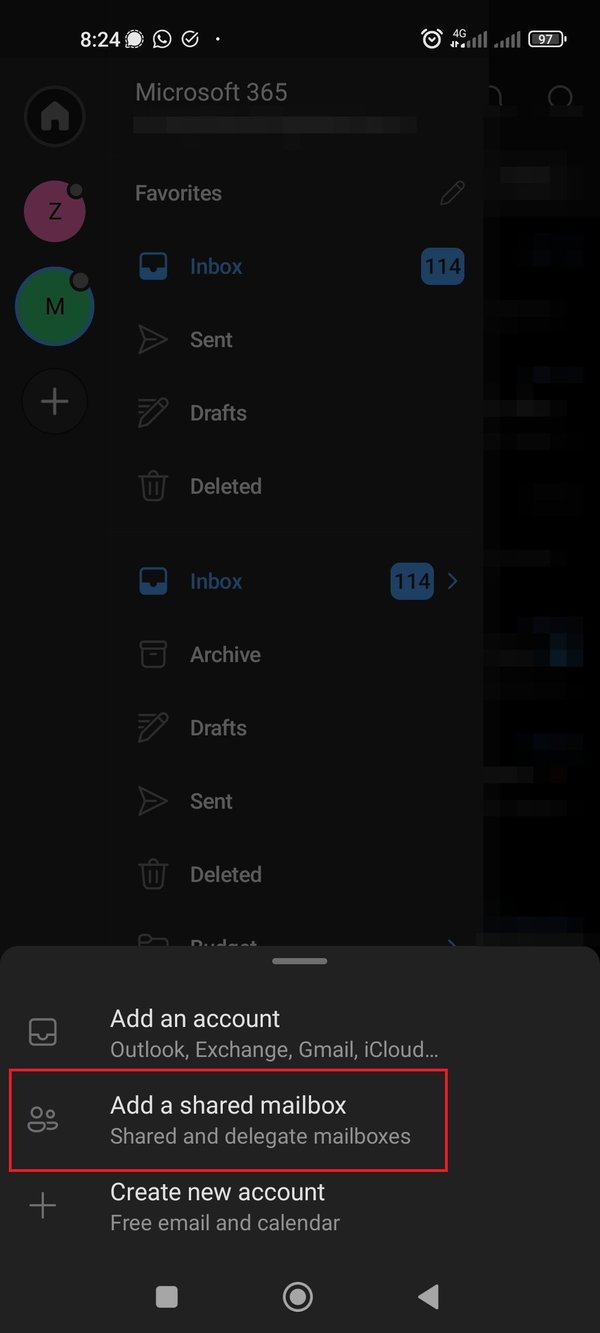
- Tap on "add a shared mailbox"
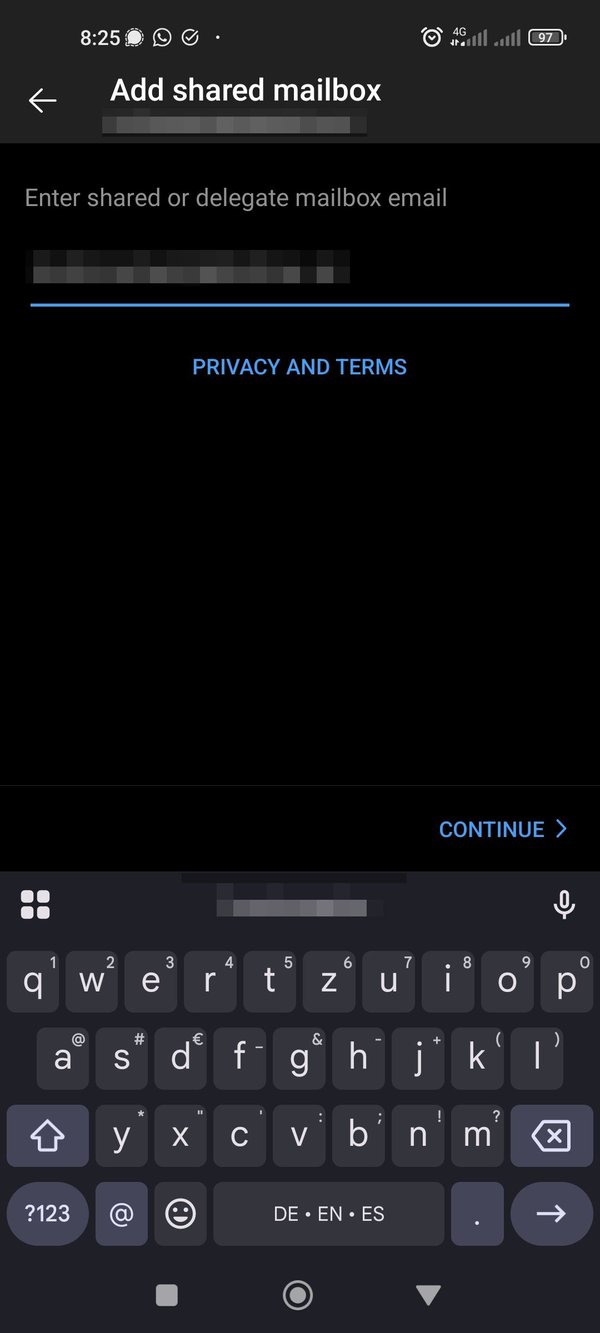
- enter the address of your shared mailbox
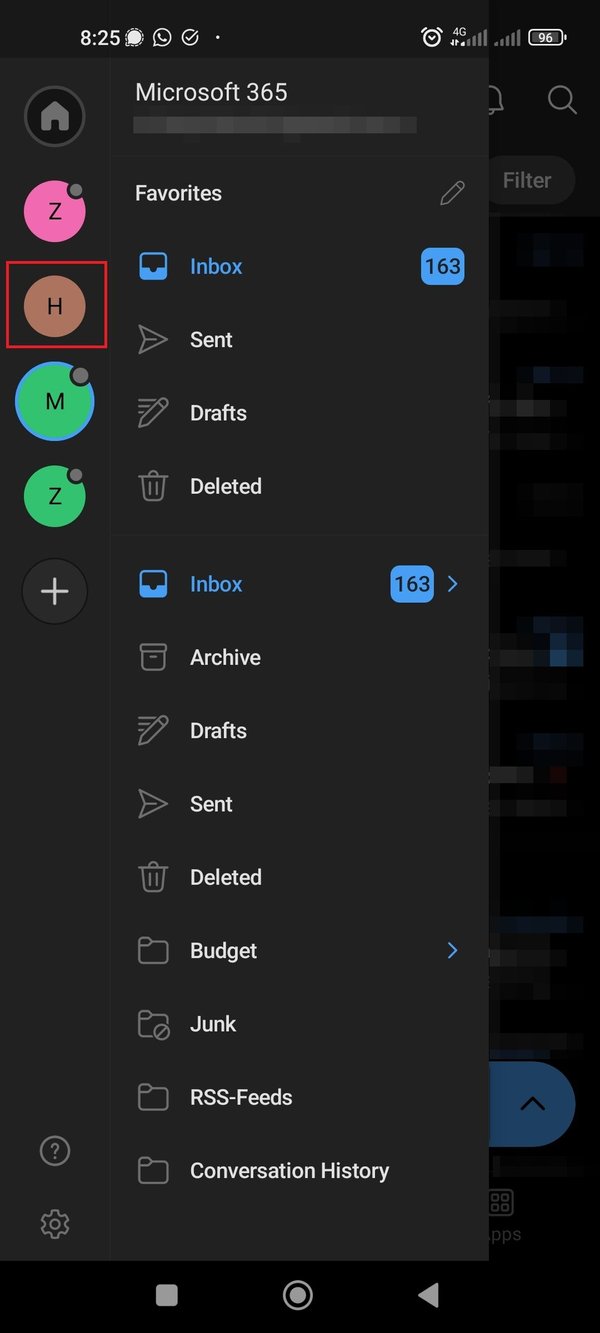
- you have now successfully added your shared mailbox
Mail Migration for Apple Mail Users (iOS)
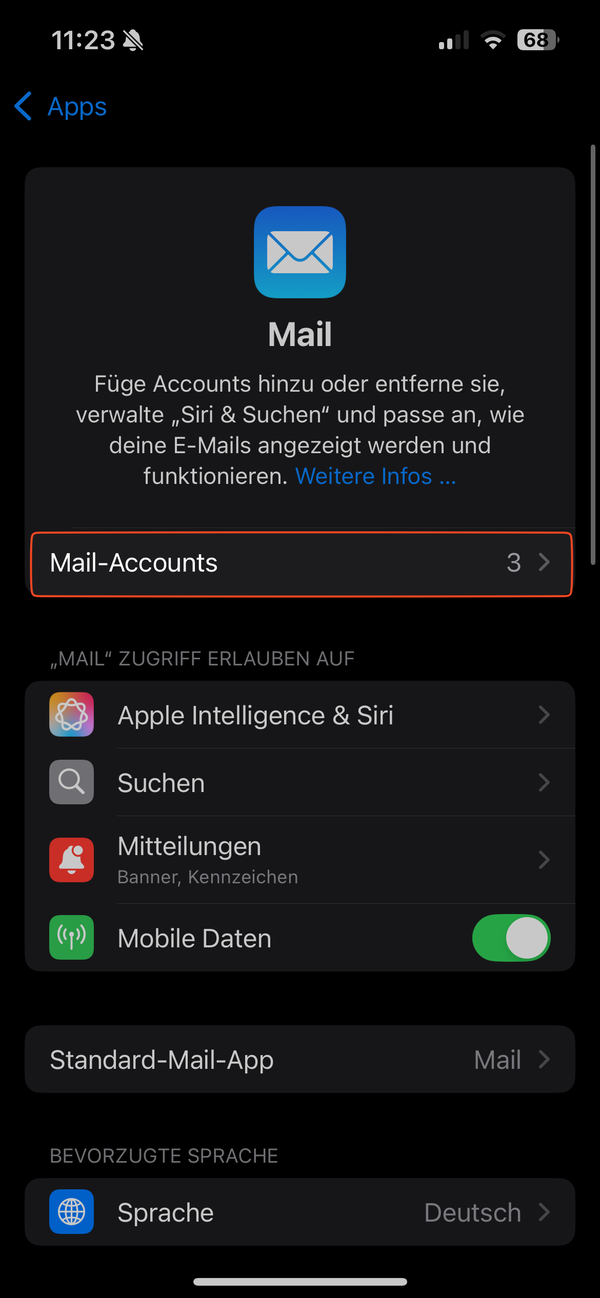
- In your iOS system settings, tap on "Mail" and then on "Mail-Accounts"
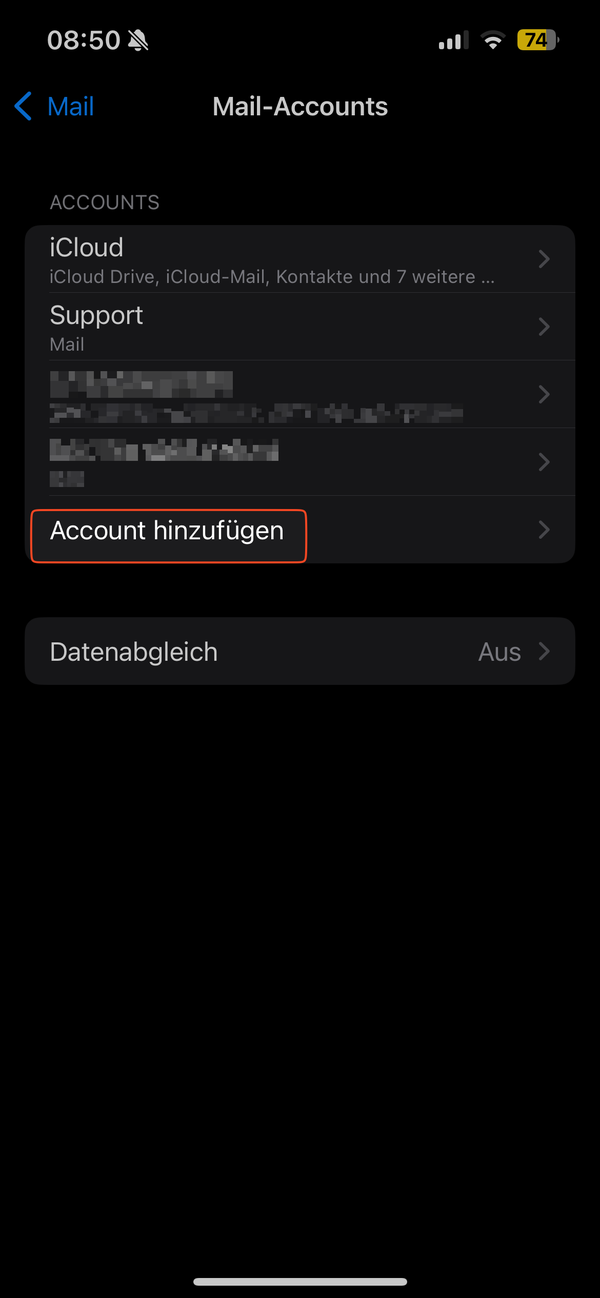
- Tap on "Account hinzufügen"
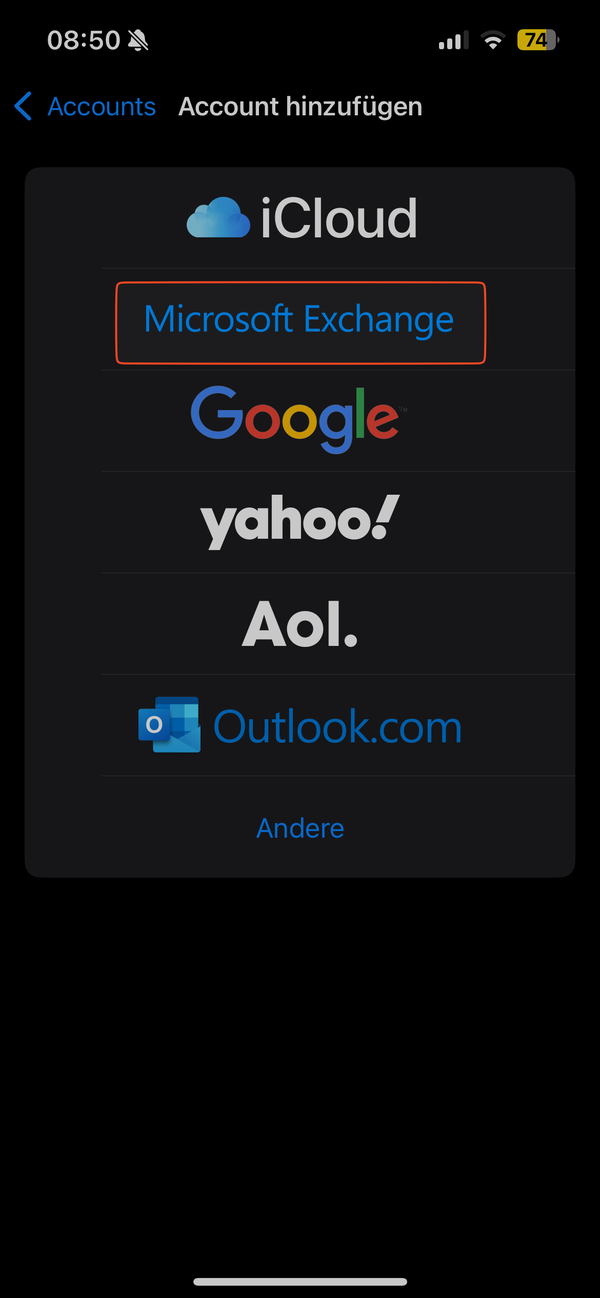
- Tap on "Microsoft Exchange"
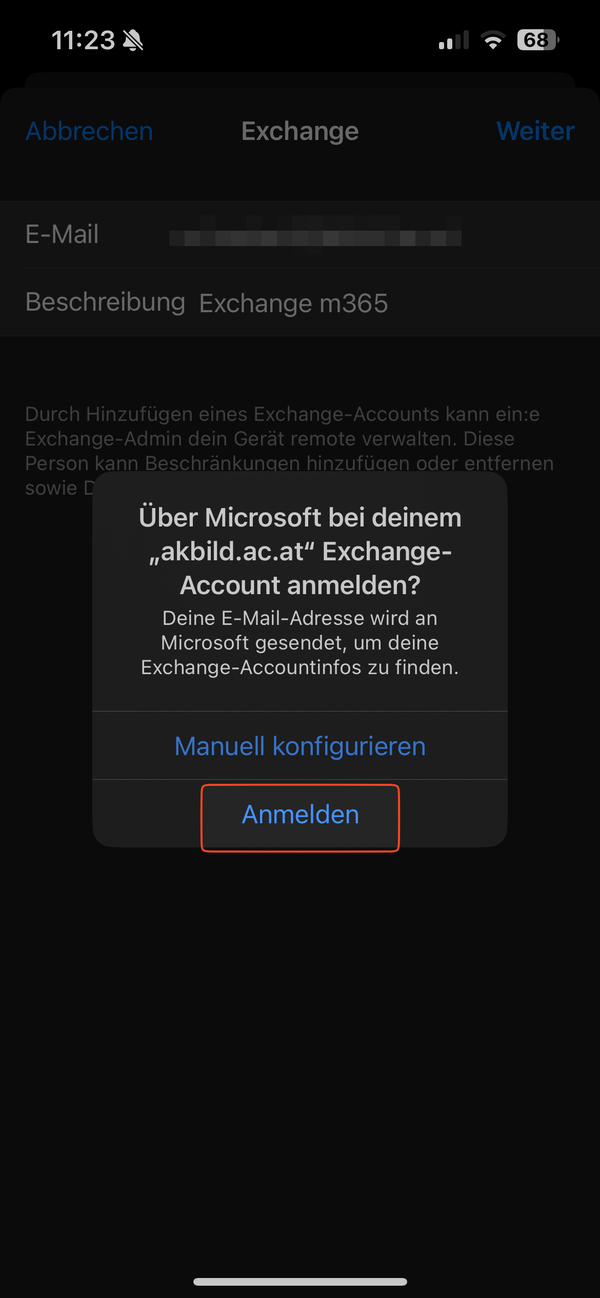
- Tap on "Anmelden"
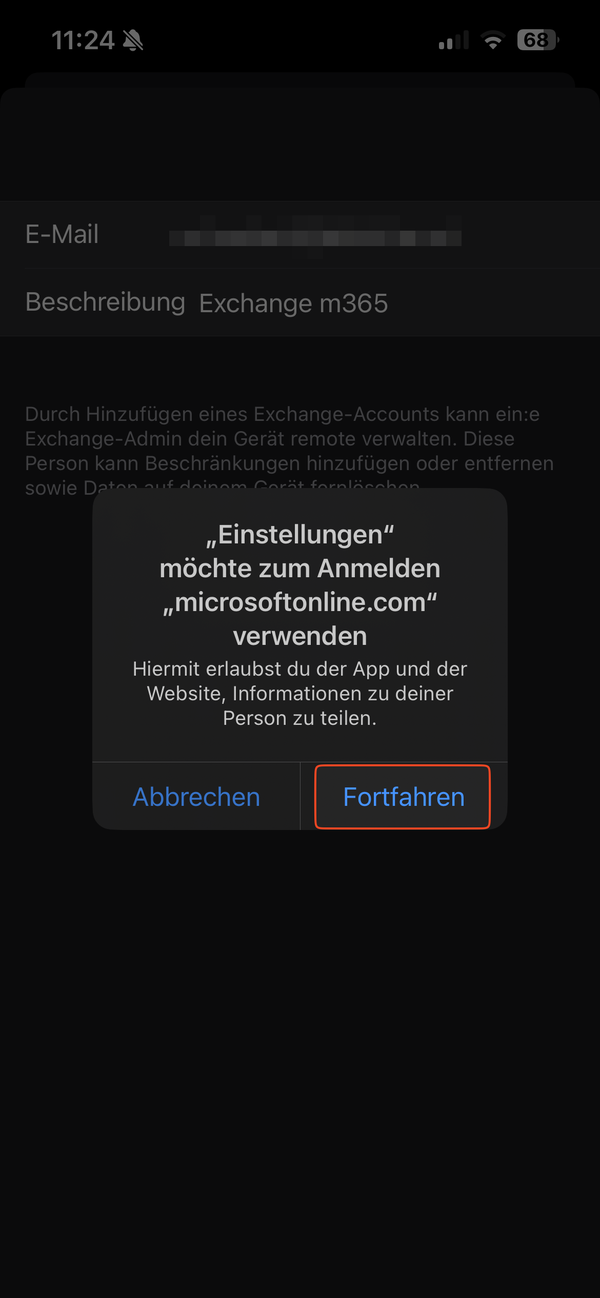
- Tap on "Fortfahren"
- Tap on "Geschäfts- oder Schulkonto"
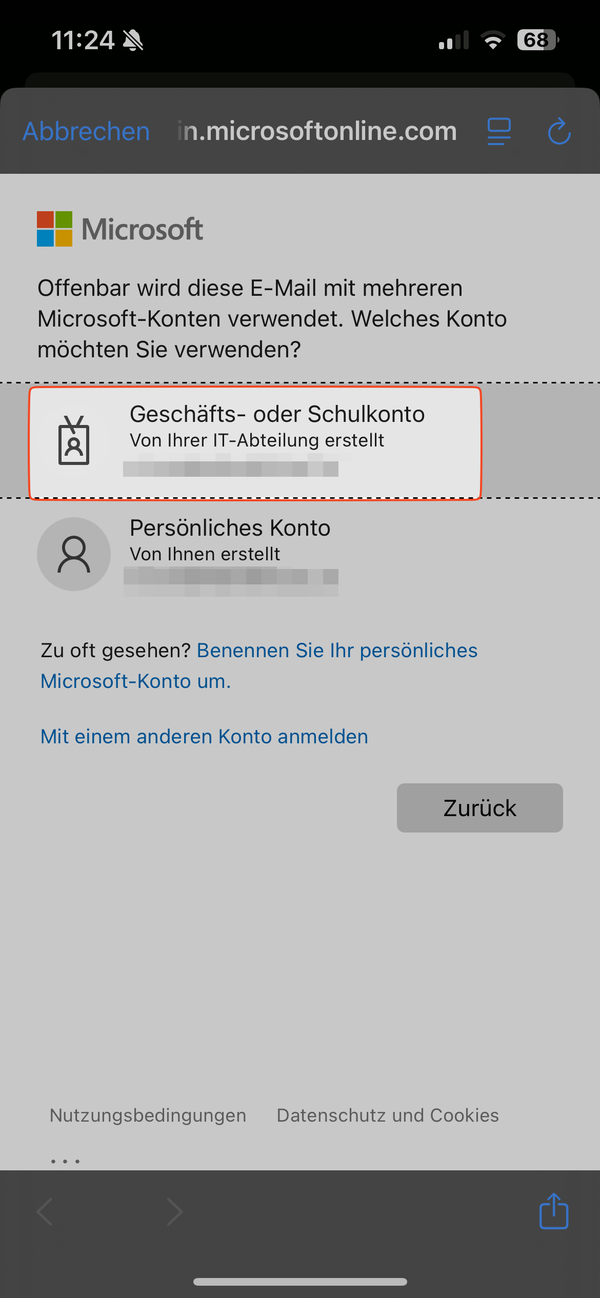
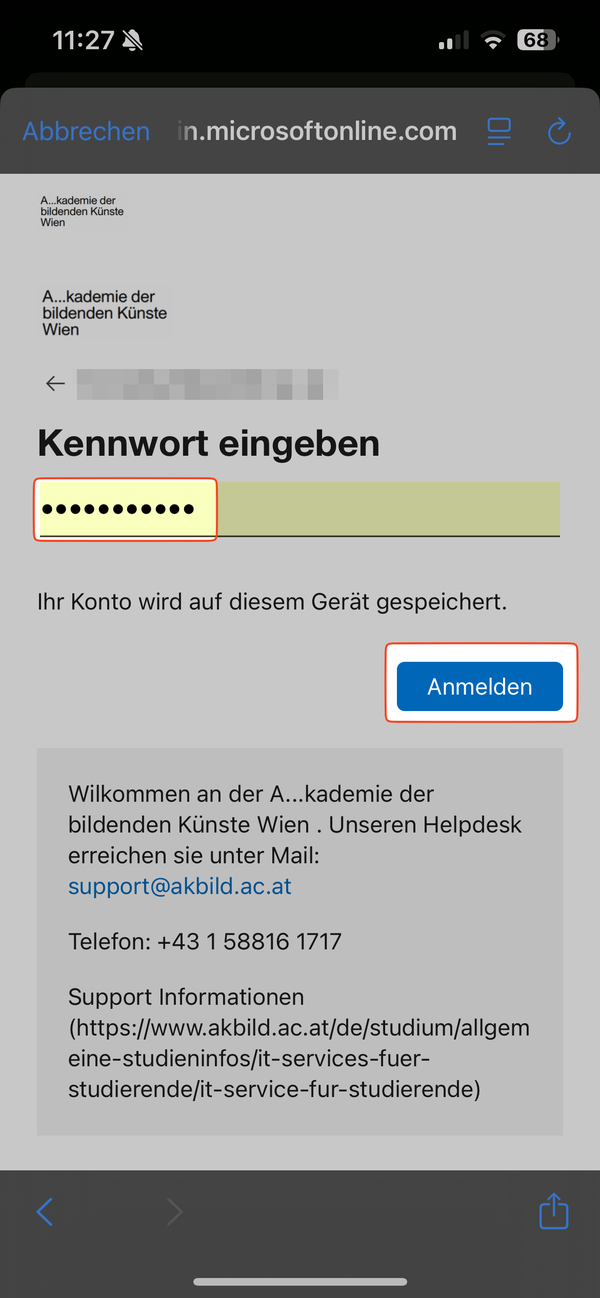
- Enter your academy password
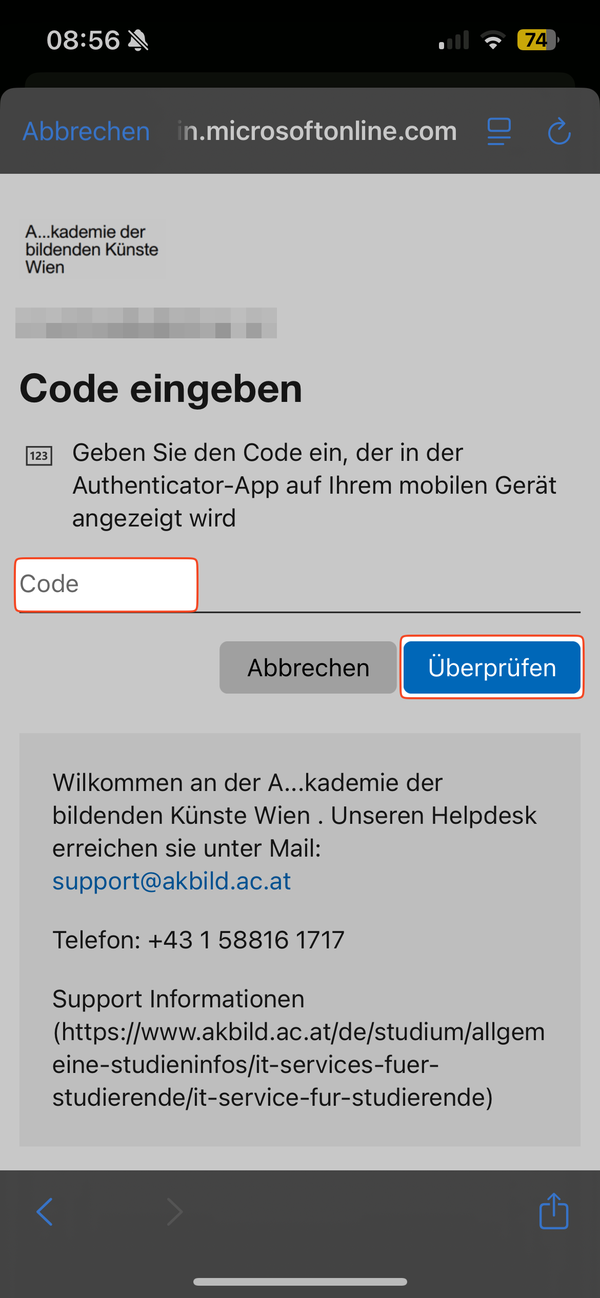
- Enter your token
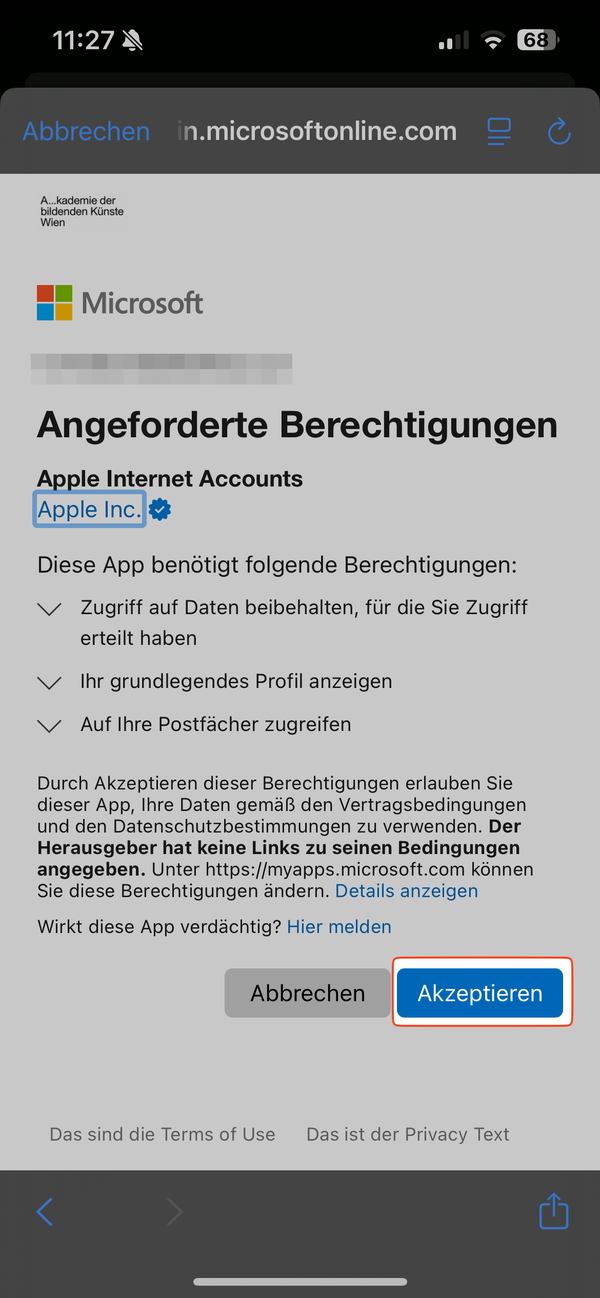
- Tap on "Akzeptieren"
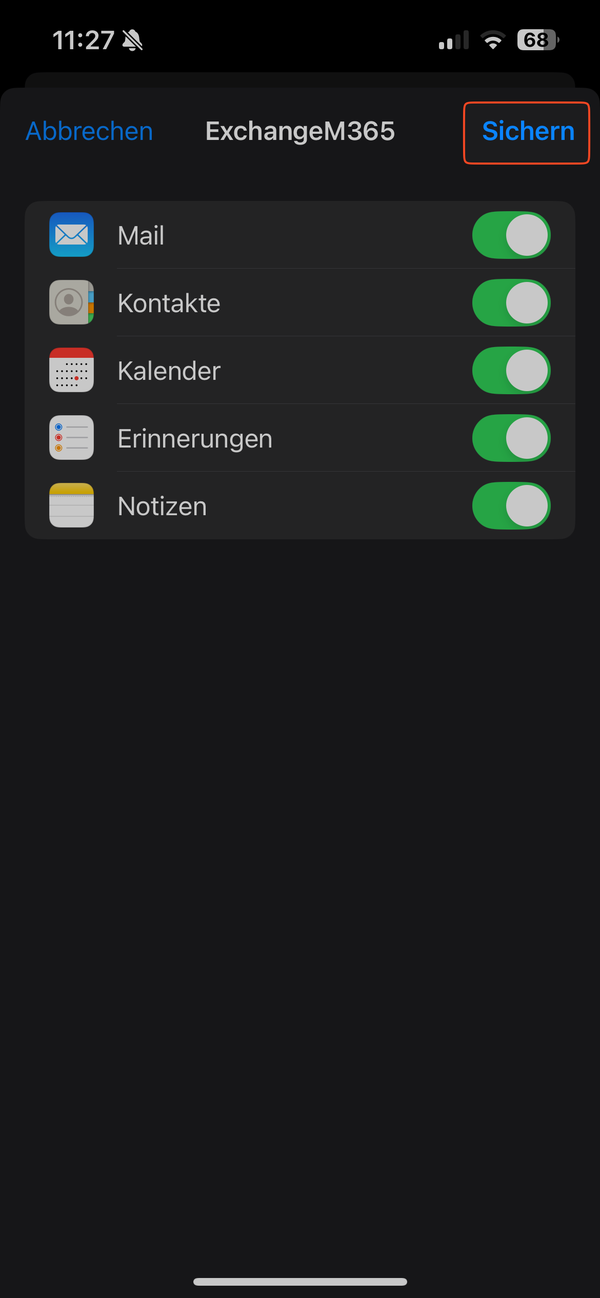
- Tap on "Sichern" in order to save your changes
Mail Migration for Outlook Users (iOS)
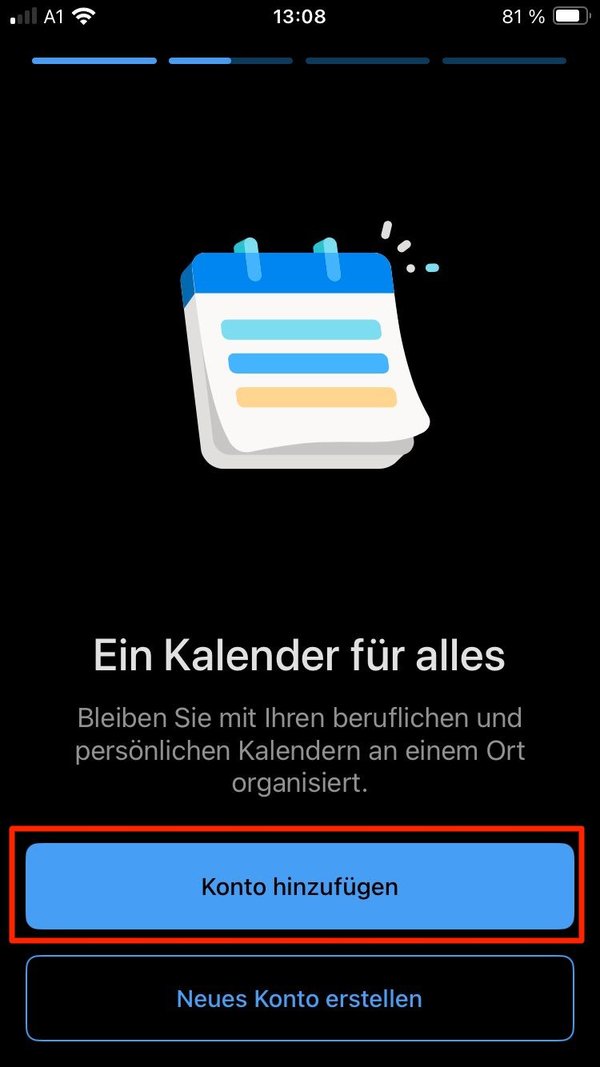
- In your Outlook app, tap on "Konto hinzufügen"
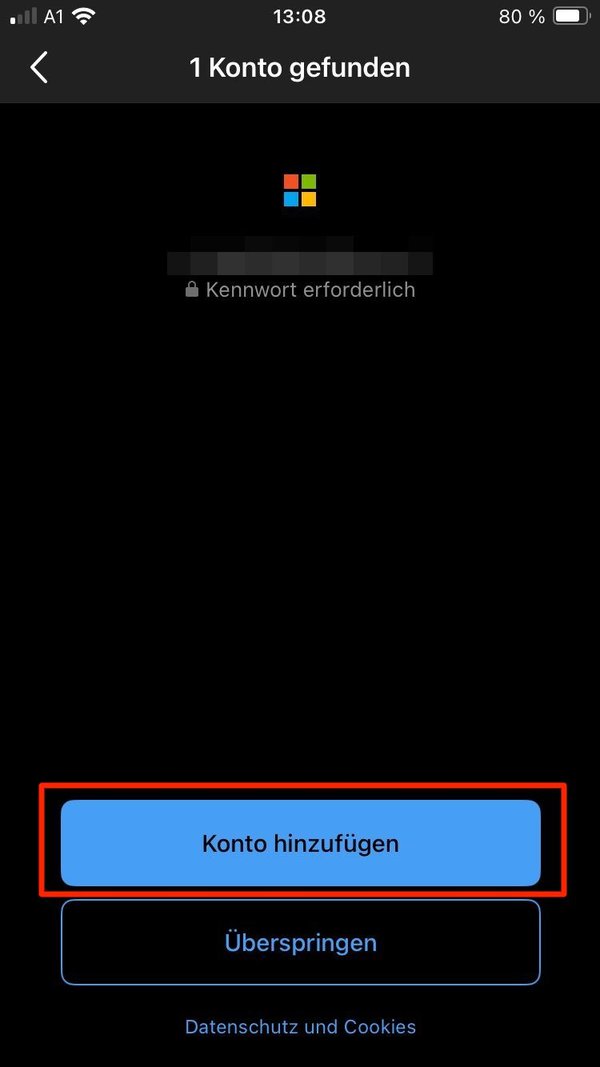
- Again, tap on "Konto hinzufügen"
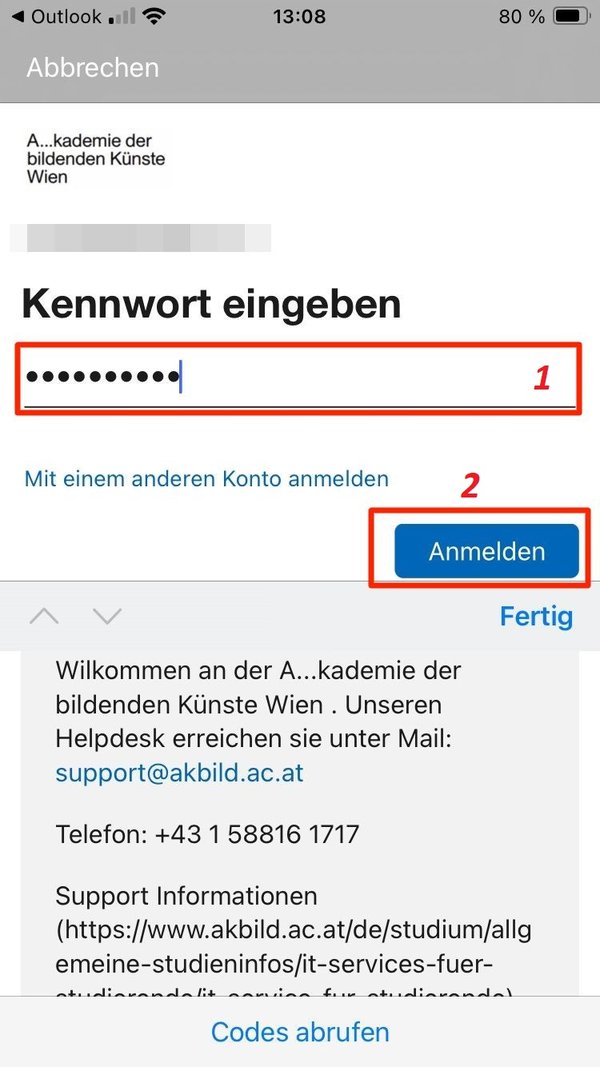
- Enter your academy password, then tap on "Anmelden"
Mail Migration for Users of Other Mail Clients
If you use a mail client other than Outlook (e.g., Apple Mail, Gmail, Samsung Mail Client, Thunderbird ...), please check the M365 compatibility of your mail client. You can usually find this information in your email client's documentation by searching online for terms such as "M365," "Exchange Online," "Outlook 365," or "Exchange 365." in combination with your mail client.
The current version of Apple Mail (iOS app and macOS app) has been tested by us and is compatible.Please check compatibility of your mail client yourself (OAuth2, “modern authentication,” Exchange 365, etc.).
- Oauth2: Open authorization. We are using protocol Oauth 2.0
- Modern Authentication: Modern Authentication in Exchange Online enables authentication features such as MFA, Smartcards, Certificate-Based Authentication (CBA), and SAML-Non-Microsoft-Identity-Providers.
- Exchange 365: „Exchange“ is the program for Microsoft E-Mail servers. The compatability with M365 mail servers is therefor required.
Handling of Spam, Junk, and Phishing Emails
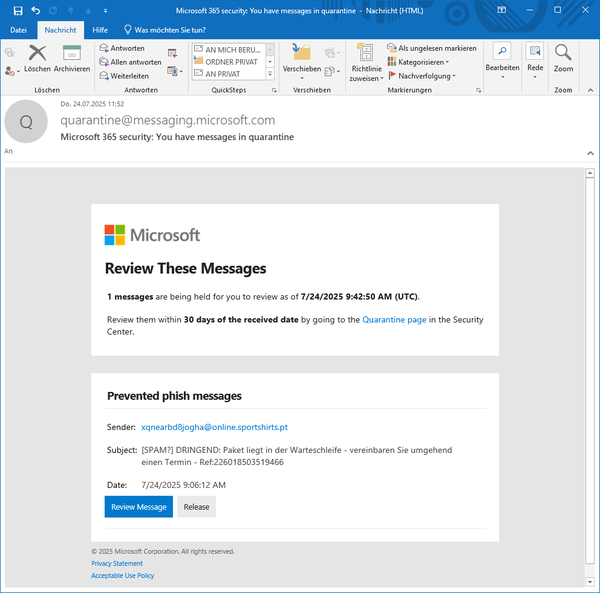
As part of the email migration, the system's handling of spam, junk, or phishing emails will be modified, so that emails identified as suspicious will be moved to a quarantine area ("Spam Folder"). In this case, you will receive an email notification, allowing you to choose whether to review or release these emails. If you are certain that it is a spam or junk email, you can ignore the message. Suspicious emails placed in the quarantine area will be automatically deleted within 30 days without intervention.
-
Here is the quarantine notification.
-
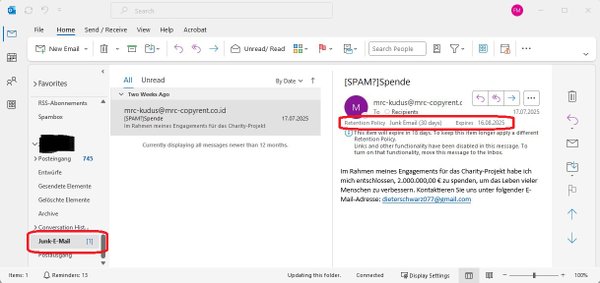
To review the message in question, either click on "Review Message" or go to your Junk folder.
-
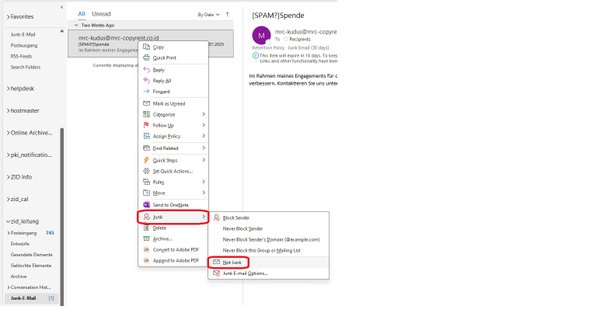
You can also manually mark an email that is mistakenly in the Junk folder as "not spam" by right-clicking on the email, navigating to the "Junk" menu item, and then clicking on "Not Junk."