MFA Token Activation / Token Change
NOTICE FOR EMPLOYEES WITH SOFT TOKENS:
The authentication method for your login will be switched to Microsoft Entra ID on May 19, 2025. During the transition period from May 19 to June 23, 2025, you will need to activate a new token in the Microsoft portal, which will serve as the second factor for authentication and replace your old token.
After 23rd of June you will be prompted to activate a new token when loging in (e.g. at AkademieOnline).
NOTICE FOR EMPLOYEES WITH HARDWARE TOKENS:
No changes are required. Your hardware token remains valid!
Software token self service / Change
- If you do not have MFA (Multi Factor Authentication) yet:
Install the authenticator app of your choice on your smartphone.
ZID only supports and tests:
Microsoft Authenticator (recommended) (Android, iPhone)
Google Authenticator (Android, iPhone) and
PrivacyIdea Authenticator (Android, iPhone).
See also QR-Codes for downloading the authenticator apps.
(FreeOTP and other apps also work and are allowed for use, but ZID does not test them actively.) - Open the Microsoft-Login page in a browser and login with your academy e-mail address and CampusOnline password:
(You don't need to create a new account.)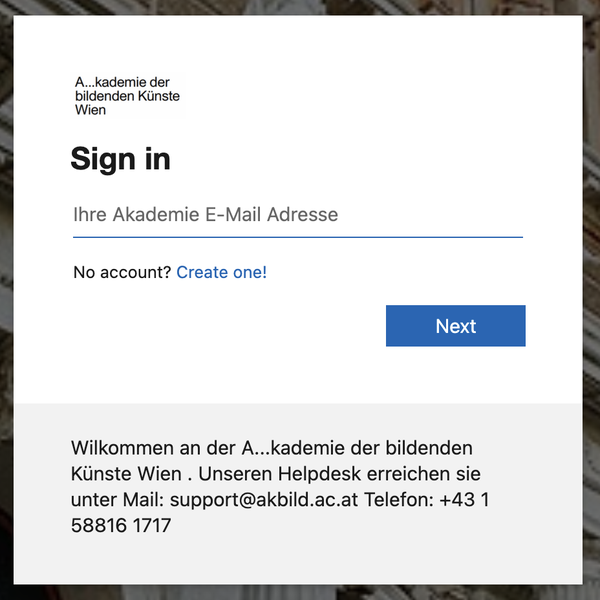
- After logging in you will see this dialog box:
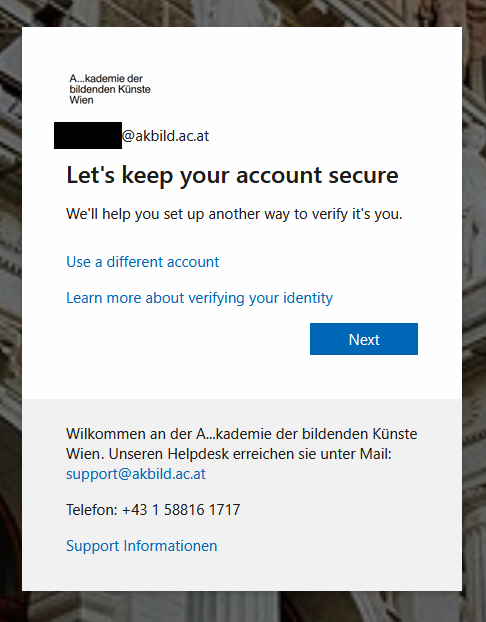
- If you want to use a different authenticator app than Microsoft Authenticator, please skip the next steps and follow these instructions.
If you would like to use Microsoft Authenticator with push notifications, continue here. Push notification is a more modern, secure, and convenient form of multi-factor authentication. You only need to enter two digits and your smartphone PIN (or fingerprint), and you will receive a notification, for example, if someone attempts to log in using your credentials.
Note: This type of authentication requires an active internet connection (Wi-Fi or mobile data on your smartphone)
Please click "Next":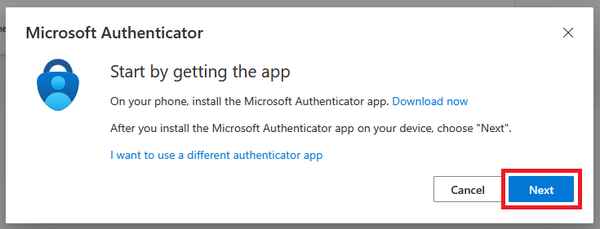
- Click on "Next" again:
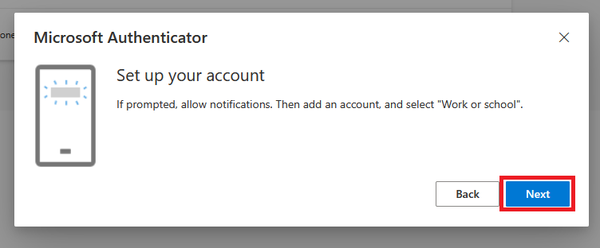
- Install the Microsoft Authenticator app on your smartphone through your device's app store (Google Play Store (Android) / App Store (Apple)). Download, installation and use are free.
Please refer to QR-codes for authenticator apps for links to the app stores. - Open the Microsoft Authenticator app on your smartphone and tap the QR-code symbol in the bottom right corner:
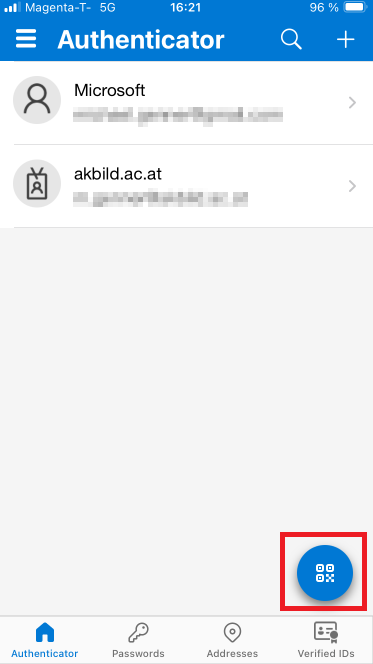
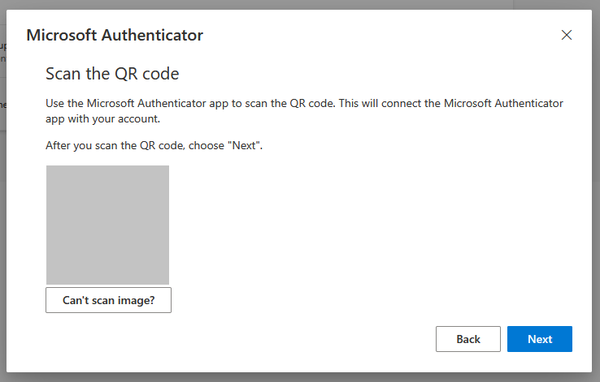
- Scan the QR-code that is shown on your computer with your smartphone through the Microsoft Authenticator app. Then click on "Next":
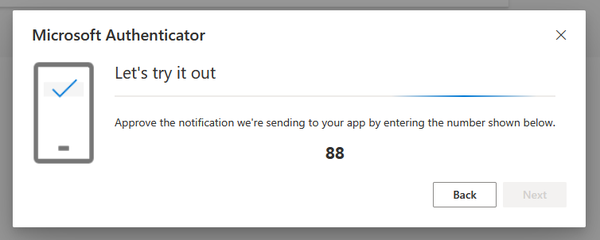
- The computer will show you a set of numbers, as shown below. Then you will receive a notification on your smartphone. Enter the code into your smartphone and confirm it there:
- Click on "Next":
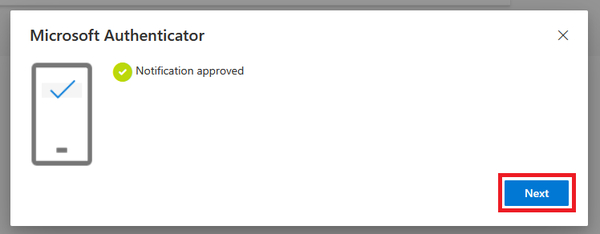
- You are done. You have successfully created a second factor for your authentification and can log in using Microsoft Authenticator in the future.
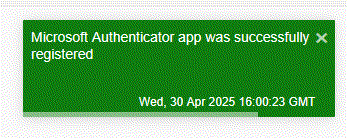
- Optional: You can now erase your old token from your authenticator app
Token activation with an alternative authenticator app (other than Microsoft Authenticator)
- Note: You do not need to use the Microsoft Authenticator. If you would like to use a different authenticator app (e.g., Google Authenticator or PrivacyIdea Authenticator), please click on "Ich möchte eine andere Authentifikator-App verwenden"
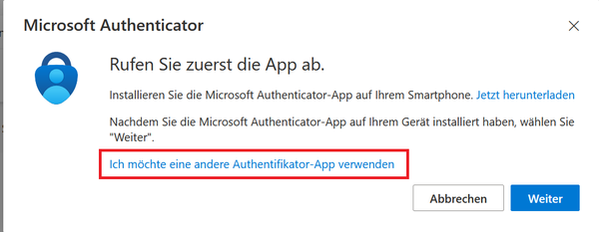
- Click on "Next":
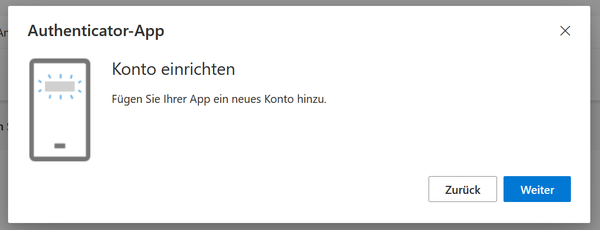
- If you don’t have an authenticator app installed yet, you need to do so now. If you have an authenticator installed, please go to step 4.
Install the authenticator app through your device’s app store (Google Play Store (Android) / App Store (Apple)). The most used alternatives at the Academy are “PrivacyIdea Authenticator” and “Google Authenticator". Both are free to download and use.
Please refer to QR-codes for authenticator apps for links to the app stores. - Open the authenticator app on your smartphone and tap the button to add the QR code for the new token.
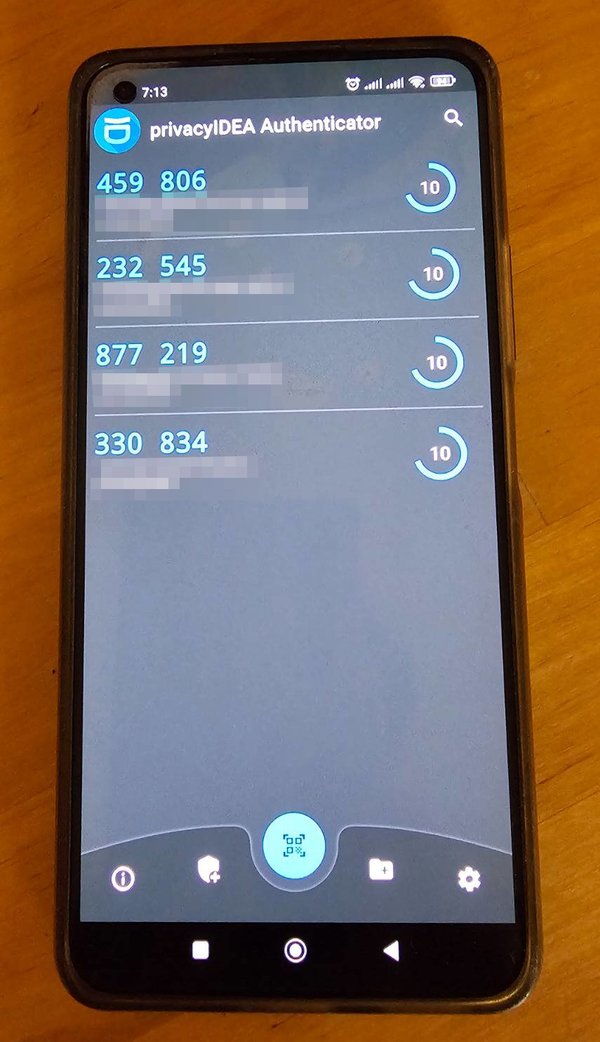
This is an example screenshot of the PrivacyIdea Authenticator app: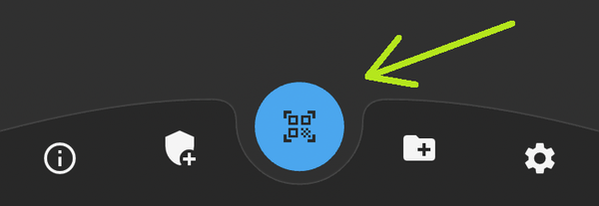
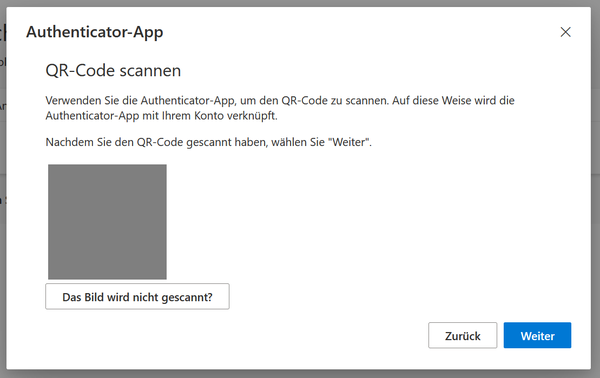
- Scan the QR-Code that is shown on your computer with the authenticator app on your smartphone and click "Next":
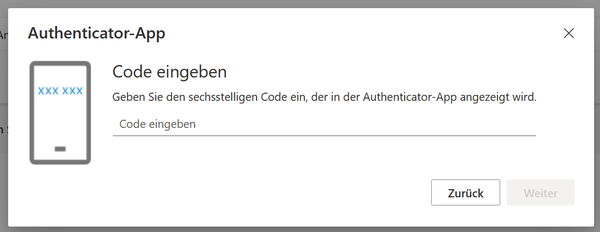
- Enter the six-digit code, which is shown in the authenticator app:
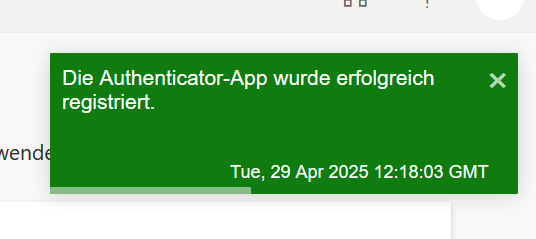
- You are done. You have now successfully activated the second factor:
- Optional: Around ten minutes after activating the new token, you can test your Login at Akademie Online. If it works you can now erase your old token from your authenticator app.
To delete your old token, put your finger on the old token and swipe left. After that select “Delete” and confirm.
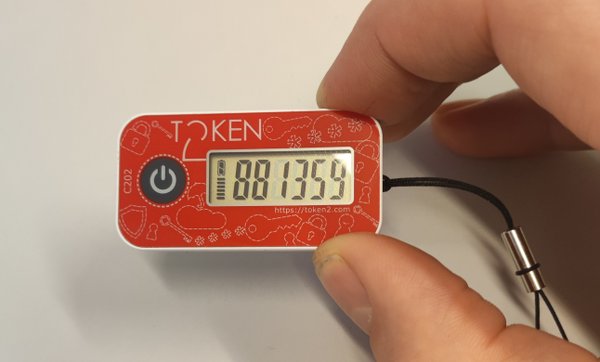
Hardware token
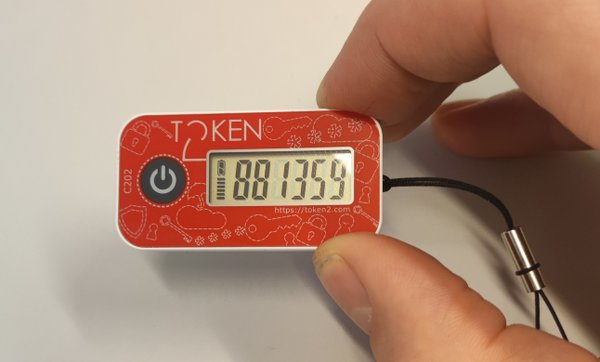
If you don’t want to use a software token, you can request a so-called hardware token. This is an external device which generates the token for your MFA-login.
Glossary
Video-Explanation
Pros and Cons - hardware token vs. software token
What are tokens? Tokens are random six-digit numbers, which are generated either by a dedicated hardware device or by an application. During a login this number is requested in an additional step after filling in the username and password,, before the user is logged in.
Software token in authenticator app (PrivacyIdea):
Hardware token:
Pros and Cons:
| Software Token | Hardware Token |
| No additional device | A small device on the keychain |
| Self-service (can be activated without VPN 24/7) | Collection from ZID necessary |
| 3 factor authentification (if pincode, fingerprint or similar is activated on the smartphone) | 2 factor authentification |
| Use of private phone is necessary | Academy provides the hardware |
| No data transmission | |
| No personal data is being exchange at the time of the activation |
QR-Codes for authenticator apps
PrivacyIdea authenticator app (Android):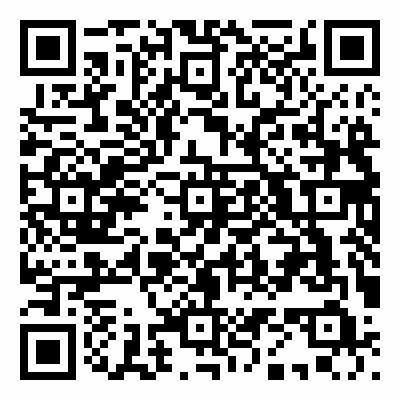 | PrivacyIdea authenticator app (Apple):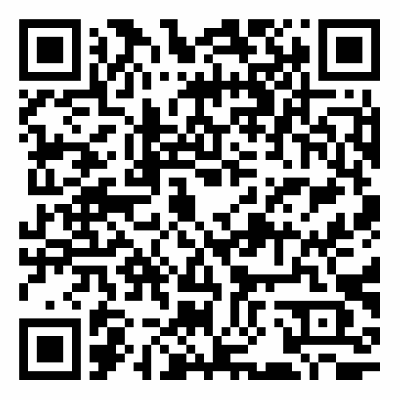 |
Google authenticator app (Android):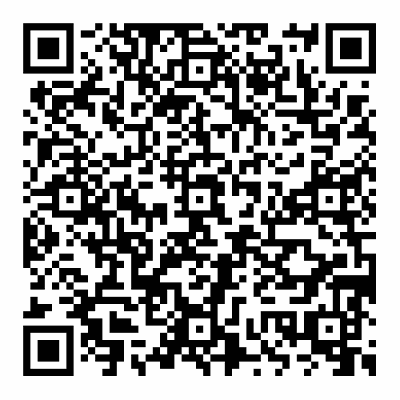 | Google authenticator app (Apple):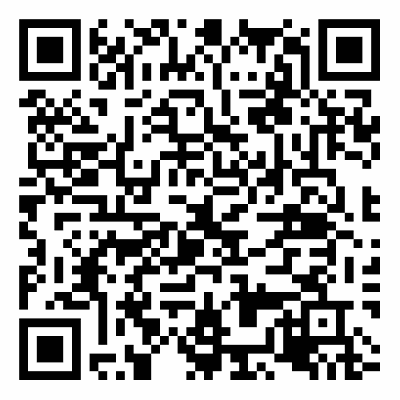 |
Microsoft authenticator app (Android):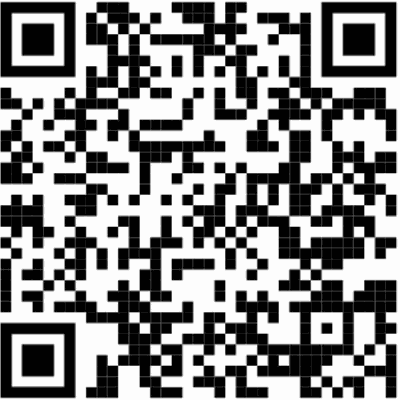 | Microsoft authenticator app (Apple): |